Changing the background (skybox)
PhotoDome surrounds you with an immersive 360° background — also called a skybox. You can swap it for one of the built-in scenes, turn one of your own photos into the background, or simply show, hide, and reset it. There are three ways, and they all start from the same place.
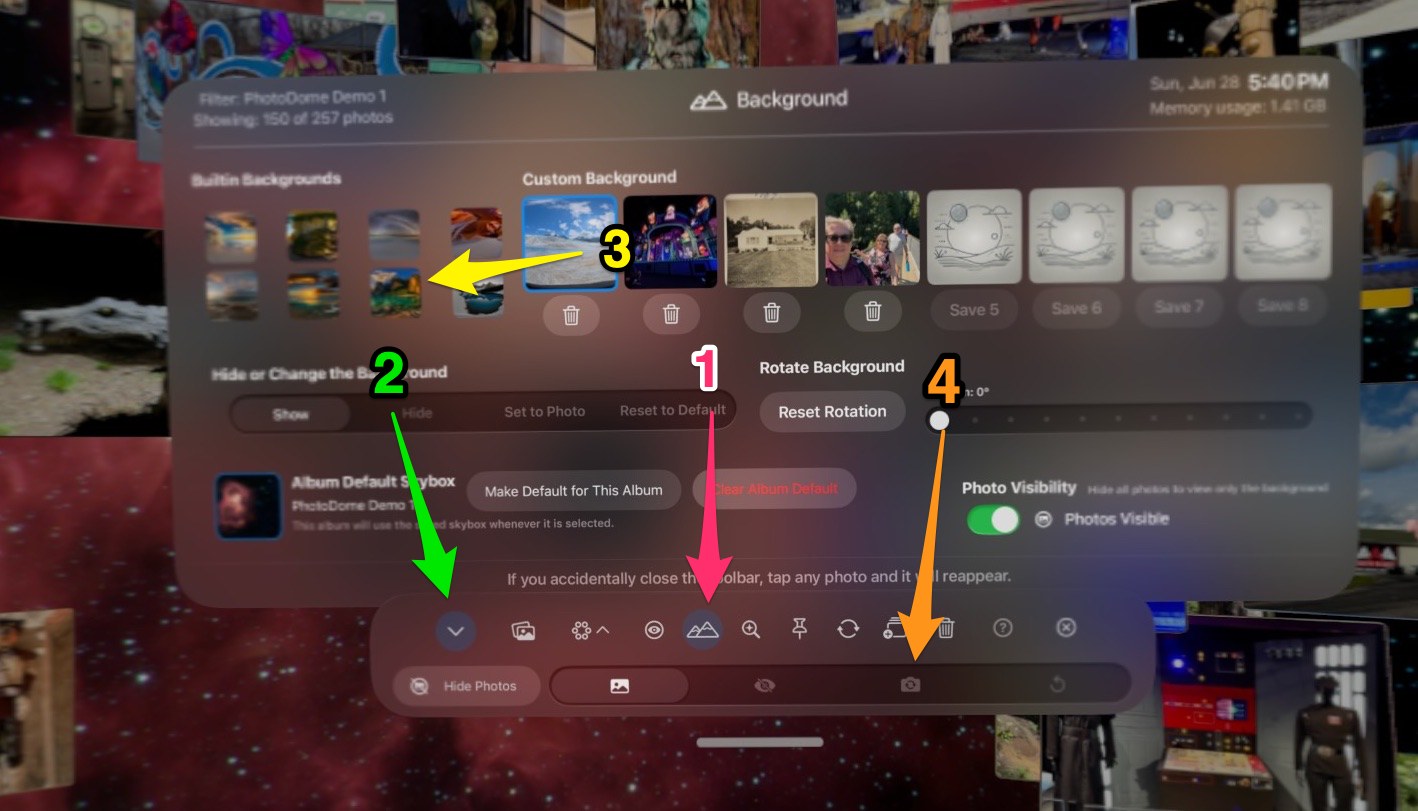
The numbered arrows in the screenshot match the controls used in the steps below.
Tap the mountain icon in the floating toolbar to open the Background panel.
Use this toolbar as your starting point. The chevron collapses or expands it when you need more room.
Choose a built-in scene on the left or pick from saved custom backgrounds across the top.
Use the options strip for Show, Hide, Set to Photo, and Reset. Use the panel slider to rotate the scene.
Pick a built-in scene
Use the thumbnail area shown by 3. In the Builtin Backgrounds grid, tap any thumbnail to switch instantly. The scene cross-fades in, and the active one is outlined in blue. PhotoDome ships with eight scenes:
Use the Rotate Background slider on the right of the panel to spin the scene so the part you like best lines up with your view.
Way 2Use one of your own photos
Turn any photo floating in the dome into the 360° background.
In the Background Options picker shown by 4, tap Set to Photo. The hint “Tap any photo to set as the background” appears — then tap any photo tile, and it cross-fades in as your new background.
Keep it. A tapped-photo background is temporary until you save it. In the Custom Background row, tap Save 1 (or 2, 3, …) to store it as a reusable thumbnail. Remove a saved one with its trash button .
To make the current background open automatically with an album, use Make Default for This Album in the Album Default Skybox section.
Way 3Show, hide, or reset
The Background Options picker shown by 4 also toggles the background on and off, or returns it to the default:
| Control | What it does |
|---|---|
| Show | Displays the background scene |
| Hide | Hides the background so you see your real room (passthrough) |
| Set to Photo | Enter photo-picking mode (see Way 2) |
| Reset to Default | Restores the default background for the current viewing mode |
Frequently asked questions
How do I get back to the original background?
Open the Background panel and tap Reset to Default in the Background Options picker. This restores the default scene for the viewing mode you're in.
I set a photo as the background but it disappeared. Why?
A photo set with Set to Photo is temporary. To keep it, save it to a Custom Background slot (Save 1 / 2 / 3 …) or use Make Default for This Album. Saved backgrounds stay available as thumbnails.
Can I see my real room instead of a background?
Yes. Tap Hide in the Background Options picker to turn the background off and show passthrough.
How do I delete a custom background I saved?
In the Custom Background row, tap the trash button beneath the thumbnail you want to remove.
The background is sideways or off-center. Can I rotate it?
Use the Rotate Background slider in the Background panel to spin the scene, or tap Reset Rotation to return it to 0°.
Quick reference
| I want to… | Go to | Tap |
|---|---|---|
| Use a built-in scene | Background → Builtin Backgrounds | A thumbnail |
| Use my own photo | Background → Background Options | Set to Photo, then a photo |
| Save my photo background | Background → Custom Background | Save 1 / 2 / 3 … |
| Turn the background off | Background → Background Options | Hide |
| Go back to default | Background → Background Options | Reset to Default |
All paths begin by tapping the Background button in the toolbar.